-4.png?width=300&height=97&name=bucketlist-full-logo%20(2)-4.png)
How to Access the Developer Console
Clearing Cache and Cookies
Sometimes in support tickets, we will ask you to clear your cache and cookies and try again. This is to ensure we are starting with a non-cached version of the website and help investigate.
Most browsers will work with the shortcut of Ctrl+Shift+Del (Or Cmd+Shift+Del on Mac) to open "clear browsing data" menu, select "Cached images and files" and for time period use "All time" to clear.
Google Chrome
- Open Chrome.
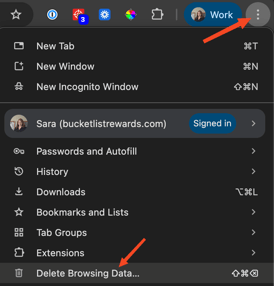
- At the top right, click More (three vertical dots) > Delete browsing data.
OR type "chrome://settings/clearbrowserdata" in your address bar to access this function - Choose a time range (eg All time), ensure that at minimum Cookies and other site data and Cached images and files are selected
- Click Delete data
Microsoft Edge
- Open Edge.
- Click Settings (three horizontal dots) > Privacy > Delete Browsing Data
OR type "edge://settings/clearbrowserdata" in your address bar to access this function - Choose a time range (eg All time), ensure that at minimum Cookies and other site data and Cached images and files are selected
- Click Clear Now
How to Access Incognito Mode
Sometimes in support tickets, we will ask you to try again in an incognito mode of the browser. This can help rule out some cached info or extensions from causing issues, and allow better investigation.
Most browsers will work with the shortcut of Ctrl+Shift+N (windows) or Cmd+Shift+N (Mac) to open a new incognito window.
Google Chrome
-
Open Chrome
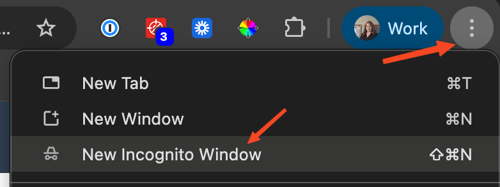
- At the top right, click More > Open Incognito Window
- Normally, we will request you to try the issue again in this incognito window
Microsoft Edge
- Open Edge.
- Click Settings > New inPrivate window
- Normally, we will request you to try the issue again in this incognito window
How to Access the Developer Console Information
Sometimes in support tickets, we will ask you to provide the developer console information as a screenshot or recording for investigative purposes.
Most browsers will work with the shortcut of Ctrl+Shift+I (Windows) or Cmd+option+I (Mac) to open developer tools.
Google Chrome
-
Open Chrome
- At the top right, click More > More Tools > Developer Tools
- This will open a pop-up in the window with the developer tools
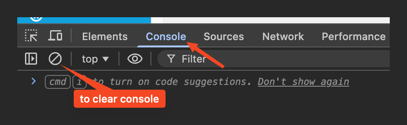
- We usually will want to see the "console" tab of these tools, and you can click 🚫 to clear the console before retrying your issue.
Microsoft Edge
-
Open Edge.
- Click Settings > More tools > Developer Tools
- This will open a pop-up in the window with the developer tools
- We usually will want to see the "console" tab of these tools, and you can click to clear the console before retrying your issue.