-4.png?width=300&height=97&name=bucketlist-full-logo%20(2)-4.png)
Bucketlist now supports non-email-based authentication through SSO, allowing your organization to onboard employees who do not have a work or personal email address stored in your HRIS. Instead, employees are identified and authenticated using a unique identifier (such as an Employee ID or Global ID) through your existing SSO provider. This is especially useful for organizations with data privacy or policy requirements that prevent sharing employee email addresses with third-party systems.
Important:
- If your organization does not use SSO for all users this feature is unavailable and you will need to use email/password for authentication.
- Even though a user does not need an email address provided by the company to authenticate, we still require a notification email to be provided by either the company or the user when the login for the first time.
How It Works
When non-email login is enabled for your company, here is the high-level flow:
- Your Bucketlist Customer Success Manager (CSM) enables the non-email login feature for your account.
- Your employees are imported via CSV/SFTP sync using a unique identifier column (e.g., Employee ID) in place of or in addition to an email address.
- When an employee logs in for the first time via SSO, Bucketlist authenticates them using their unique identifier rather than an email address.
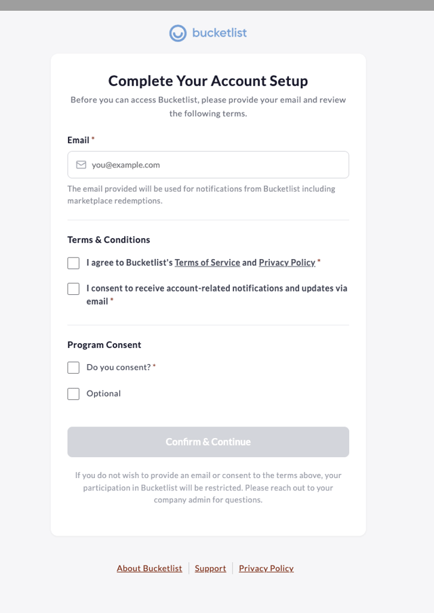
- If a Consent Form is configured, the employee is prompted on first login to provide a personal notification email address and agree to Terms & Conditions.
What Your CSM Will Set Up
Your CSM will handle all backend configuration. You do not need to do anything in Bucketlist’s admin tools. Here is what your CSM will configure on your behalf:
Step 1: Enable Non-Email Login
Your CSM will flip a setting in Bucketlist to allow users without email addresses to be synced. Once enabled, users can be created and updated in Bucketlist using only a unique identifier (e.g., Employee ID). Users who have neither an email address nor a unique identifier in your sync file will be skipped.
Step 2: Configure Your CSV/SFTP Sync
Your CSM will map a “Unique Identifier” column in your CSV/SFTP sync configuration to the column in your data file that contains the identifier (e.g., Employee ID). This is what Bucketlist will use to match and authenticate users via SSO.
Note: This feature currently supports CSV/SFTP sync only. If your organization uses ADP, UKG/Ultipro, or Workday for syncing, please speak with your CSM about next steps.
Step 3 (Optional): Set Up a Consent Form
If your employees do not have work emails and will need to receive Bucketlist notifications (such as reward redemption emails), your CSM can configure a Consent Form that prompts employees to provide a personal notification email on their first login. Your CSM can configure the following options on your behalf:
- Whether to show the notification email input field to employees
- Whether employees can update their notification email after their first login
- Whether to show the form only to users who haven’t yet provided an email, or to all users
- Optional custom consent checkboxes with your own language (e.g., internal data sharing acknowledgements)
Note: A notification email is required for your employees to enter Bucketlist. If an employee does not want to provide an email address they will not be able to enter Bucketlist
What You Need to Set Up in Your SSO and HRIS Systems
While your CSM configures the Bucketlist side, there are a few things your team will need to ensure are in place on your own systems.
SSO Configuration Requirements
Your SSO provider (e.g., Okta, Azure AD) must be configured to pass the correct unique identifier in the SSO assertion or token sent to Bucketlist. We also require you to use SAML as the setup type
Specifically:
- The unique identifier (e.g., Employee ID) must be included as an attribute in the SAML assertion. The field name/attribute key should match what your CSM configures on the Bucketlist side.
- The identifier must be stable and unique per employee — it should not change over time, as it is what Bucketlist uses to recognize returning users.
- If an employee has both an email address and a unique identifier in your SSO token, the unique identifier takes precedence for login matching.
HRIS / Employee Data File Requirements
Your employee data file (CSV/SFTP feed) must include a dedicated column for the unique identifier. Key requirements:
- Each employee must have a unique identifier value. No two employees within your organization can share the same identifier.
- The identifier must be consistent between your HRIS data file and your SSO system. The value in the CSV must exactly match the value your SSO sends to Bucketlist.
- An employee with no email address AND no unique identifier in the sync file will be skipped and logged as a sync error. Please ensure all employees intended for non-email login have a valid identifier in your data file.
- The email column in your data file is not required for non-email users, but a notification email column (separate from the primary email) can still be included if you want Bucketlist to an email address the company provides.
What Employees Will See
From an employee’s perspective, the login experience is seamless. Employees simply click “Log in with SSO” and are authenticated via your organization’s SSO provider using their unique identifier. They do not need to enter an email address to log in.
If a Consent Form has been configured for your company, employees will see a “Complete Your Account Setup” page on their first login. This page may include:
- A required field to provide a personal email address for Bucketlist notifications — employees must provide an email to access the platform
- Agreement to Bucketlist’s Terms of Service and Privacy Policy (required)
- An option to consent to receiving account-related email notifications
- Any custom consent checkboxes your organization requested
The form will appear on every login until the employee completes it. Employees cannot skip or bypass the form. If an employee does not provide an email, they will not be able to access Bucketlist — a notification email is required to use the platform.
What Changes in Your Admin View
Once non-email login is enabled for your account, you will notice the following changes on your Members page:
- A new “User Identifier” column will appear in your member list, showing each employee’s unique identifier (e.g., Employee ID).
- If an employee has a notification email (provided via the Consent Form or your data file), it will be displayed under their name instead of a primary email.
- You can search for members by their User Identifier (in addition to searching by name or email).
- When adding a new member manually, the email field is not required. A read-only “User Identifier” field will be displayed, along with an optional “Notification Email” field.
- User identifiers must be unique within your organization. If a duplicate identifier is entered, a validation error will appear.
Note: Reporting also reflects these changes. Employee exports will include the User Identifier and Notification Email columns for non-email users.
Frequently Asked Questions
-
What if all of our employees do not have access to login with SSO? Can I still use this feature?
-
No. All users must login through SSO to use non-email authentication.
-
-
What if an employee does not want to provide an email?
-
They will not be able to use Bucketlist. A notification email is still required to use Bucketlist.
-
-
Can a user update their unique identifier later?
-
The User Identifier field is read-only in the admin interface for existing users. To update an identifier, the change should be made in your HRIS data file, and the next scheduled CSV sync will update it in Bucketlist automatically.
-
-
Can two employees share the same unique identifier?
-
No. Unique identifiers must be unique within your organization. If a duplicate identifier is detected, a validation error will occur and the record will not sync. Please ensure your HRIS data has clean, unique identifier values for all employees.
-
-
What happens if a row in my data file has no email AND no unique identifier?
-
That employee will be skipped during the sync, and a sync error will be logged. The sync will continue for all other rows. You should review your sync logs for errors and correct any missing data in your file before the next sync.
-
-
What happens to an employee’s identifier if they are deactivated and then re-activated?
-
The unique identifier is preserved when an employee is deactivated and restored when they are re-activated. Their SSO login will continue to work correctly after re-activation with no data loss.
-
-
Is the Consent Form required?
-
No, the Consent Form is optional. It is most useful for organizations whose employees don’t have work emails and need a way to collect personal notification emails upon first login. It can also be configured for email-based companies who want to collect explicit consent from all users regardless of whether they have an email on file.
-
-
An employee says they didn’t receive a verification email after submitting the Consent Form. What should I do?
-
The employee can request a new verification link directly from the “Please verify your email” screen they see when attempting to log in before verifying. Verification links expire after 72 hours. If the employee needs to start fresh (for example, to change the email they entered), please reach out to your CSM for assistance.
-
-
Can we use this feature with our ADP, Workday, or other HRIS integration?
-
Currently, this feature supports CSV/SFTP sync only (including Merge connections). Native integrations with ADP, BambooHR, UKG/Ultipro, and Workday are not yet supported for non-email login. If your organization uses one of these systems, please speak with your CSM about your options and timelines.
-
-
What if an employee has both an email address and a unique identifier? Which takes precedence?
-
When both are present in your sync data, the unique identifier takes precedence. The email address is ignored for SSO matching purposes, though it may still be used for notification emails depending on your configuration.
-