-4.png?width=300&height=97&name=bucketlist-full-logo%20(2)-4.png)
Table of Contents:
Overview
Spark is an AI-powered chat assistant built into your Insights dashboard. Instead of digging through charts and filters to find what you're looking for, you can simply type a question in plain language — like "How many recognitions did my team send last month?" — and get an instant answer, chart, or data breakdown.
Spark only has access to your own company's Bucketlist data. No other organization can view or query your data, and you cannot see data belonging to other companies.
Where to find it
Spark is available from the Insights page in Bucketlist. Look for the chat bubble icon in the lower-right corner of the screen.
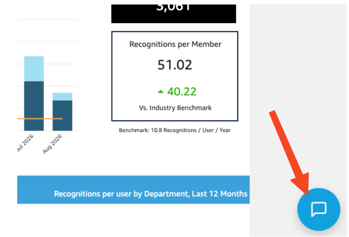
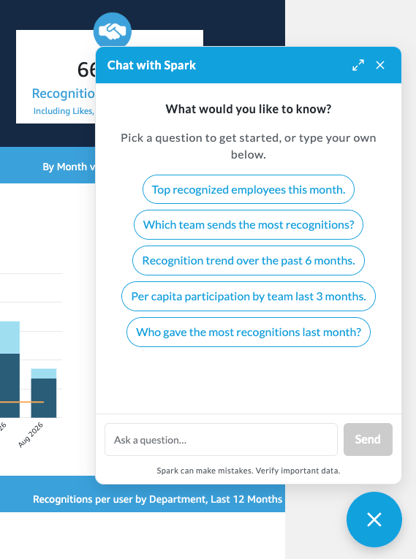
Clicking the icon opens a chat panel where you can type your questions. The panel can be expanded to full-width for a larger view, or closed at any time.
When you start a new session, Spark displays a set of sample questions to help you get started.
Who can Access It
Access to Spark can be restricted by role. Check with your account administrator to confirm which roles in your organization have access.
Important: Spark knows who you are and what team(s) you belong to — which is how it can answer personal questions like "what's the last recognition I gave?" However, it does not restrict what you can ask about based on that information. Any user with access can query data across the entire company, not just their own team. Because of this, access is intended for top-level administrators who already have (or should have) visibility into company-wide recognition data, not for managers or users who should only see their own team's data.
What you Can Ask It
Spark currently answers questions about recognitions and awards. Support for additional data types (such as redemption data) is planned for future releases.
Examples of what you can ask:
- Personal activity — "What's the last recognition I gave?" or "How many recognitions did I send this month?"
- Team and org activity — "How many recognitions did my team get last month?"
- Breakdowns — by team, recipient, week, month, or quarter (e.g., "Break it down by receiver and week")
- Themes and sentiment — "What are the themes in recent recognitions?" or "How often was collaboration mentioned?"
You can also ask follow-up questions to refine your results — for example, narrowing to "the last month" or "top 8" results. Spark remembers context from the last few messages in your conversation, so you don't need to repeat details like the time period or team you're asking about in each follow-up.
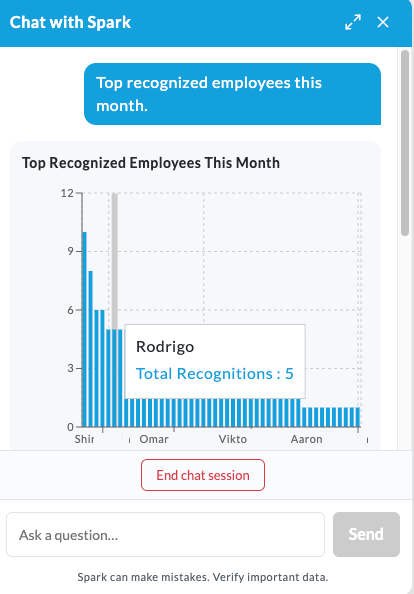
Spark can also answer questions about the text content of recognitions, including theme and sentiment analysis — for example, identifying common themes across recent recognitions or how often a specific value or behavior was mentioned.
What it can't access
Spark is currently focused on the recognition data for your company. In future releases, it will also be able to answer questions about points, redemptions, and other areas of interest.
Spark understand many things about your company’s recognitions, but does not currently have access to:
- The content of media (images, videos, etc.) attached to recognitions
- The content of comments left on recognitions
- Likes on recognitions
- Points associated with recognitions
Support for these is planned for a future release.
Note that there is a limit to the length of the question text you can enter. It is a large limit, so in practice you may not hit this limit, but if you do, try breaking your question into smaller pieces.
Note that private or moderation-flagged recognitions will not be included in the analysis.
Looking ahead, we plan to expand Spark's capabilities to offer strategic advice on improving engagement across your company, and ultimately to take actions on your behalf.
Charts and exporting data
Spark can generate a variety of chart types to visualize your data, and you can ask it to adjust the chart layout to suit your needs.
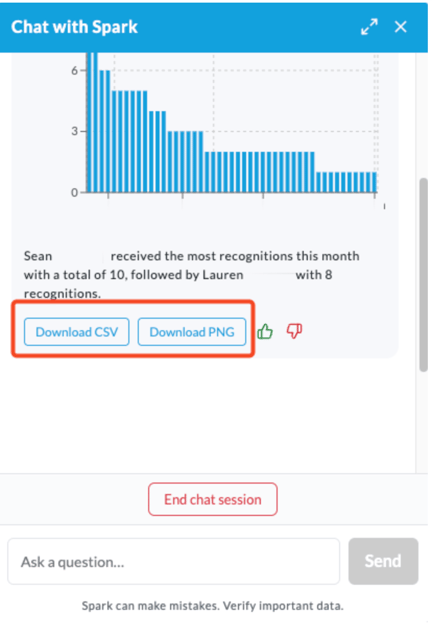
Every response includes an export option:
- Text and table responses can be downloaded as a CSV
- Charts can be downloaded as a PNG
CSV output: 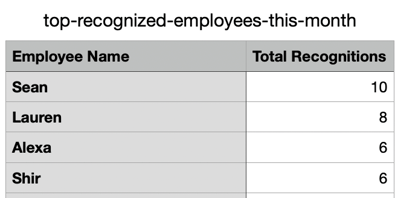
PNG Output:
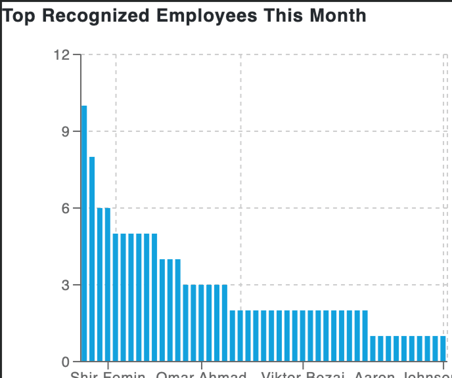
Note: Very large result sets are capped at a 100-row preview. If you hit this limit, try narrowing your question by time period, team, or employee to see more detail.
Giving feedback
Every response from Spark — whether it's a text answer, table, or chart — includes two feedback icons: a thumbs-up and a thumbs-down. Feedback is given per response, so you're rating individual answers rather than the overall chat session.
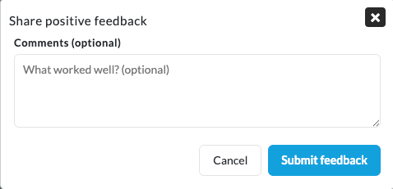
Thumbs-up (Good response): Opens a "Share positive feedback" dialog with an optional comment field asking what worked well. You can submit with or without a comment. After submitting, you'll see a "Thanks for the feedback!" confirmation, and the thumbs-up icon fills in to show that response has been rated.
Thumbs-down (Report an issue): Opens a "Report an issue" dialog with:
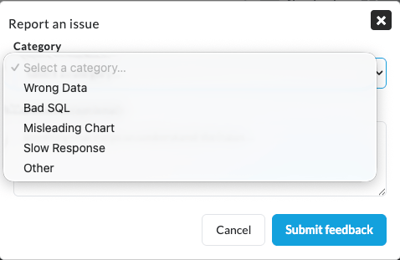
- A category dropdown to classify the issue: Wrong Data, Misleading Chart, Slow Response, or Other
- An optional comments field for any additional detail
After submitting, you'll see a "Thanks — your feedback was sent." confirmation, and the thumbs-down icon fills in the same way.
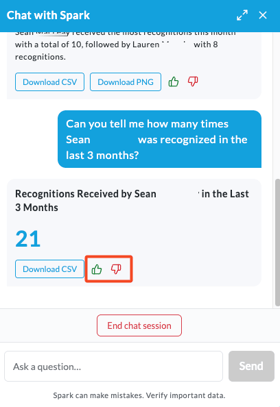
Share Positive Feedback Pop-up:
Share Negative Feedback Pop-up: 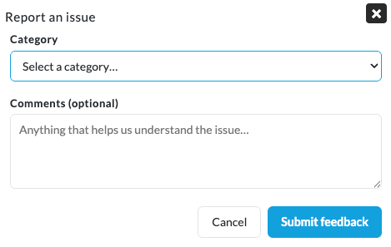
Negative Feedback Categories:
In both cases, the filled-in icon stays visible afterward, so you can tell at a glance which responses you've already rated.
We encourage you to use this feedback on every response, positive or negative. Spark is still in beta, and your ratings and comments directly shape how we improve it — so if something works well, a thumbs-up helps us know to keep doing it, and if something's off, a thumbs-down with a bit of detail helps us fix it faster.
A note on accuracy
Spark can make mistakes. Always verify important data before making decisions based on its responses.